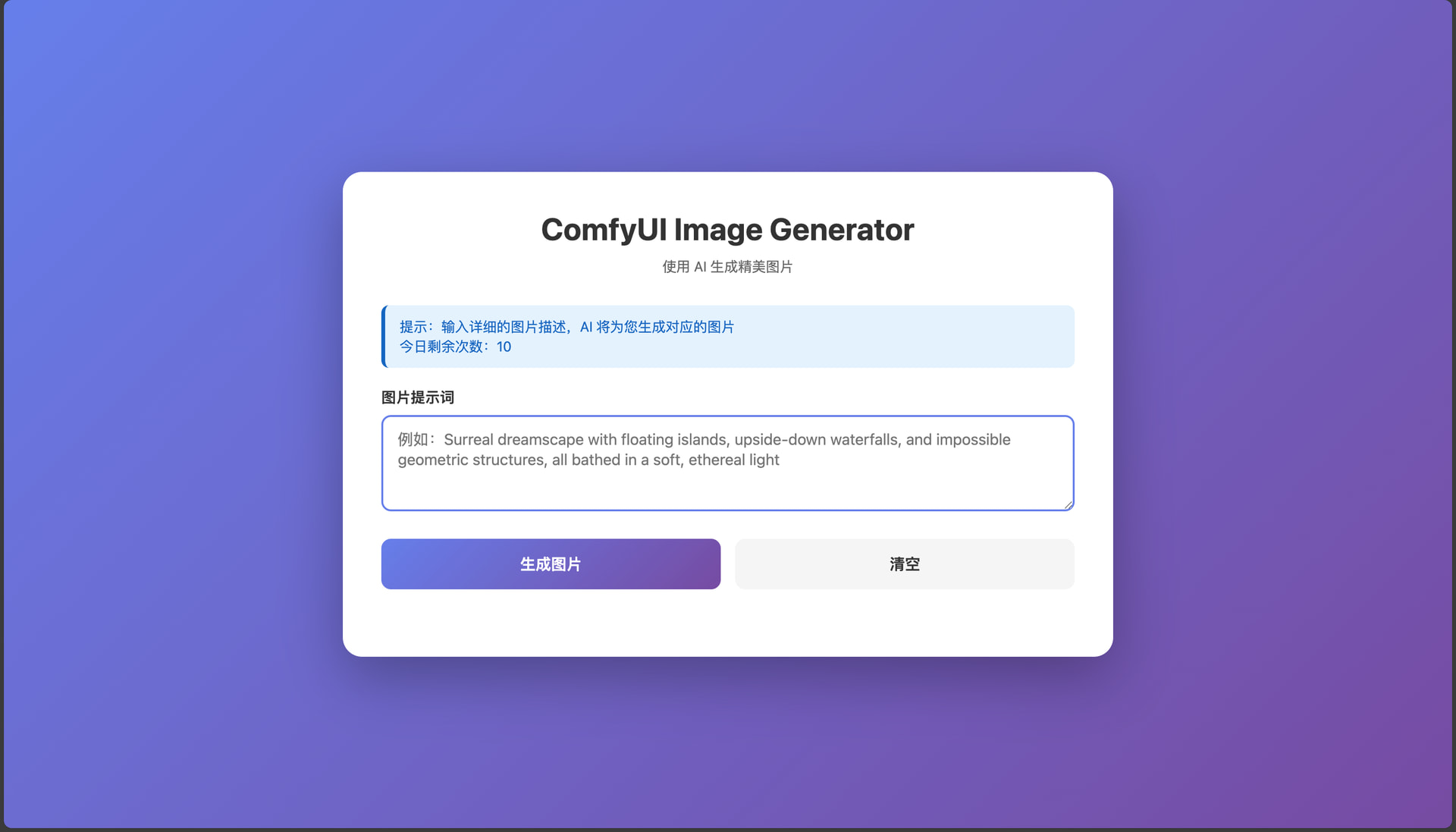
各位佬友白嫖之前先去我的github 项目点个星星吧,到100个我就可以领免费域名了。
ok,下面是正题。打开下面这个链接
https://fantastic-bubblegum-fbc36a.netlify.app/
就可以直接用了。一天十次(清空缓存可以刷新次数,防君子不防小人)给更多佬友机会用。
有动手能力的可以跟着下面的教程自己部署一个。
- 注册modal
https://modal.com/signup?next=%2Fapps无 AFF - 找个文件夹
python3 -m venv modal(python 应该都有吧,没有的话先安装python) source modal/bin/activatepip install modalmodal setup就会跳转到浏览器,让你认证一下- 新建一个
z_image_workflow.json写入如下代码
{
  "6": {
    "inputs": {
      "text": "cute anime style girl with massive fluffy fennec ears and a big fluffy tail blonde messy long hair blue eyes wearing a maid outfit with a long black gold leaf pattern dress and a white apron",
      "clip": ["18", 0]
    },
    "class_type": "CLIPTextEncode",
    "_meta": {
      "title": "CLIP Text Encode (Positive Prompt)"
    }
  },
  "7": {
    "inputs": {
      "text": "blurry ugly bad",
      "clip": ["18", 0]
    },
    "class_type": "CLIPTextEncode",
    "_meta": {
      "title": "CLIP Text Encode (Negative Prompt)"
    }
  },
  "8": {
    "inputs": {
      "samples": ["3", 0],
      "vae": ["17", 0]
    },
    "class_type": "VAEDecode",
    "_meta": {
      "title": "VAE Decode"
    }
  },
  "9": {
    "inputs": {
      "filename_prefix": "ComfyUI",
      "images": ["8", 0]
    },
    "class_type": "SaveImage",
    "_meta": {
      "title": "Save Image"
    }
  },
  "13": {
    "inputs": {
      "width": 1024,
      "height": 1024,
      "batch_size": 1
    },
    "class_type": "EmptySD3LatentImage",
    "_meta": {
      "title": "EmptySD3LatentImage"
    }
  },
  "16": {
    "inputs": {
      "unet_name": "z_image_turbo_bf16.safetensors",
      "weight_dtype": "default"
    },
    "class_type": "UNETLoader",
    "_meta": {
      "title": "Load Diffusion Model"
    }
  },
  "17": {
    "inputs": {
      "vae_name": "ae.safetensors"
    },
    "class_type": "VAELoader",
    "_meta": {
      "title": "Load VAE"
    }
  },
  "18": {
    "inputs": {
      "clip_name": "qwen_3_4b.safetensors",
      "type": "lumina2",
      "device": "default"
    },
    "class_type": "CLIPLoader",
    "_meta": {
      "title": "Load CLIP"
    }
  },
  "3": {
    "inputs": {
      "seed": 47447417949230,
      "steps": 9,
      "cfg": 1,
      "sampler_name": "euler",
      "scheduler": "simple",
      "denoise": 1,
      "model": ["16", 0],
      "positive": ["6", 0],
      "negative": ["7", 0],
      "latent_image": ["13", 0]
    },
    "class_type": "KSampler",
    "_meta": {
      "title": "KSampler"
    }
  }
}
- 新建一个
main.py写入如下代码
# ---
# deploy: true
# cmd: ["modal", "serve", "06_gpu_and_ml/comfyui/comfyapp.py"]
# ---
# # Run Flux on ComfyUI as an API
# In this example, we show you how to turn a [ComfyUI](https://github.com/comfyanonymous/ComfyUI) workflow into a scalable API endpoint.
# ## Quickstart
# To run this simple text-to-image [Flux Schnell workflow](https://github.com/modal-labs/modal-examples/blob/main/06_gpu_and_ml/comfyui/workflow_api.json) as an API:
# 1. Deploy ComfyUI behind a web endpoint:
# ```bash
# modal deploy 06_gpu_and_ml/comfyui/comfyapp.py
# ```
# 2. In another terminal, run inference:
# ```bash
# python 06_gpu_and_ml/comfyui/comfyclient.py --modal-workspace $(modal profile current) --prompt "Surreal dreamscape with floating islands, upside-down waterfalls, and impossible geometric structures, all bathed in a soft, ethereal light"
# ```
# 
# The first inference will take ~1m since the container needs to launch the ComfyUI server and load Flux into memory. Successive calls on a warm container should take a few seconds.
# ## Installing ComfyUI
# We use [comfy-cli](https://github.com/Comfy-Org/comfy-cli) to install ComfyUI and its dependencies.
import json
import subprocess
import uuid
from pathlib import Path
from typing import Dict
import modal
import modal.experimental
image = ( # build up a Modal Image to run ComfyUI, step by step
modal.Image.debian_slim( # start from basic Linux with Python
python_version="3.11"
)
.apt_install("git") # install git to clone ComfyUI
.uv_pip_install("fastapi[standard]==0.115.4") # install web dependencies
.uv_pip_install("comfy-cli") # install comfy-cli
.run_commands( # use comfy-cli to install ComfyUI and its dependencies
"comfy --skip-prompt install --fast-deps --nvidia"
)
.run_commands( # download the WAS Node Suite custom node pack
"comfy node install was-node-suite-comfyui"
)
)
# ## Downloading custom nodes
# We'll also use `comfy-cli` to download custom nodes, in this case the popular [WAS Node Suite](https://github.com/WASasquatch/was-node-suite-comfyui).
# Use the [ComfyUI Registry](https://registry.comfy.org/) to find the specific custom node name to use with this command.
# See [this post](https://modal.com/blog/comfyui-custom-nodes) for more examples
# on how to install popular custom nodes like ComfyUI Impact Pack and ComfyUI IPAdapter Plus.
# ## Downloading models
# `comfy-cli` also supports downloading models, but we've found it's faster to use
# [`hf_hub_download`](https://huggingface.co/docs/huggingface_hub/en/guides/download#download-a-single-file)
# directly by:
# 1. Enabling [faster downloads](https://huggingface.co/docs/huggingface_hub/en/guides/download#faster-downloads)
# 2. Mounting the cache directory to a [Volume](https://modal.com/docs/guide/volumes)
# By persisting the cache to a Volume, you avoid re-downloading the models every time you rebuild your image.
# For more on storing model weights on Modal, see
# [this guide](https://modal.com/docs/guide/model-weights).
def hf_download():
from huggingface_hub import hf_hub_download
diffusion_model = hf_hub_download(
repo_id="Comfy-Org/z_image_turbo",
filename="split_files/diffusion_models/z_image_turbo_bf16.safetensors",
cache_dir="/cache",
)
ae = hf_hub_download(
repo_id="Comfy-Org/z_image_turbo",
filename="split_files/vae/ae.safetensors",
cache_dir="/cache",
)
text_encoder = hf_hub_download(
repo_id="Comfy-Org/z_image_turbo",
filename="split_files/text_encoders/qwen_3_4b.safetensors",
cache_dir="/cache",
)
# symlink the model to the right ComfyUI directory
subprocess.run(
f"ln -s {diffusion_model} /root/comfy/ComfyUI/models/diffusion_models/z_image_turbo_bf16.safetensors",
shell=True,
check=True,
)
subprocess.run(
f"ln -s {ae} /root/comfy/ComfyUI/models/vae/ae.safetensors",
shell=True,
check=True,
)
subprocess.run(
f"ln -s {text_encoder} /root/comfy/ComfyUI/models/text_encoders/qwen_3_4b.safetensors",
shell=True,
check=True,
)
vol = modal.Volume.from_name("hf-hub-cache", create_if_missing=True)
image = (
# install huggingface_hub with hf_xet support to speed up downloads
image.uv_pip_install("huggingface-hub==0.36.0")
.env({"HF_XET_HIGH_PERFORMANCE": "1"})
.run_function(
hf_download,
# persist the HF cache to a Modal Volume so future runs don't re-download models
volumes={"/cache": vol},
)
)
# Lastly, copy the ComfyUI workflow JSON to the container.
image = image.add_local_file(
Path(__file__).parent / "z_image_workflow.json", "/root/z_image_workflow.json"
)
# ## Running ComfyUI interactively
# Spin up an interactive ComfyUI server by wrapping the `comfy launch` command in a Modal Function
# and serving it as a [web server](https://modal.com/docs/guide/webhooks#non-asgi-web-servers).
app = modal.App(name="comfyui-online", image=image)
@app.function(
max_containers=1, # limit interactive session to 1 container
gpu="L40S", # good starter GPU for inference
volumes={"/cache": vol}, # mounts our cached models
)
@modal.concurrent(
max_inputs=10
) # required for UI startup process which runs several API calls concurrently
@modal.web_server(8000, startup_timeout=60)
def ui():
subprocess.Popen("comfy launch -- --listen 0.0.0.0 --port 8000", shell=True)
# At this point you can run `modal serve 06_gpu_and_ml/comfyui/comfyapp.py` and open the UI in your browser for the classic ComfyUI experience.
# Remember to **close your UI tab** when you are done developing.
# This will close the connection with the container serving ComfyUI and you will stop being charged.
# ## Running ComfyUI as an API
# To run a workflow as an API:
# 1. Stand up a "headless" ComfyUI server in the background when the app starts.
# 2. Define an `infer` method that takes in a workflow path and runs the workflow on the ComfyUI server.
# 3. Create a web handler `api` as a web endpoint, so that we can run our workflow as a service and accept inputs from clients.
# We group all these steps into a single Modal `cls` object, which we'll call `ComfyUI`.
@app.cls(
scaledown_window=60, # 1 minute container keep alive after it processes an input
gpu="L40S",
volumes={"/cache": vol},
)
@modal.concurrent(max_inputs=5) # run 5 inputs per container
class ComfyUI:
port: int = 8000
@modal.enter()
def launch_comfy_background(self):
# launch the ComfyUI server exactly once when the container starts
cmd = f"comfy launch --background -- --port {self.port}"
subprocess.run(cmd, shell=True, check=True)
@modal.method()
def infer(self, workflow_path: str = "/root/z_image_workflow.json"):
# sometimes the ComfyUI server stops responding (we think because of memory leaks), so this makes sure it's still up
self.poll_server_health()
# runs the comfy run --workflow command as a subprocess
cmd = f"comfy run --workflow {workflow_path} --wait --timeout 1200 --verbose"
subprocess.run(cmd, shell=True, check=True)
# completed workflows write output images to this directory
output_dir = "/root/comfy/ComfyUI/output"
# looks up the name of the output image file based on the workflow
workflow = json.loads(Path(workflow_path).read_text())
file_prefix = [
node.get("inputs", {}).get("filename_prefix")
for node in workflow.values()
if node.get("class_type") == "SaveImage"
][0]
# returns the image as bytes
for f in Path(output_dir).iterdir():
if f.name.startswith(file_prefix):
return f.read_bytes()
@modal.fastapi_endpoint(method="POST")
def api(self, item: Dict):
from fastapi import Response
# load the workflow template
workflow_data = json.loads(
Path("/root/z_image_workflow.json").read_text()
)
# insert the user's prompt into node 6 (positive prompt)
workflow_data["6"]["inputs"]["text"] = item["prompt"]
# give the output image a unique id per client request
client_id = uuid.uuid4().hex
workflow_data["9"]["inputs"]["filename_prefix"] = client_id
# save this updated workflow to a new file
new_workflow_file = f"/root/{client_id}.json"
with open(new_workflow_file, "w") as f:
json.dump(workflow_data, f)
# run inference on the currently running container
img_bytes = self.infer.local(new_workflow_file)
return Response(img_bytes, media_type="image/jpeg")
def poll_server_health(self) -> Dict:
import socket
import urllib
try:
# check if the server is up (response should be immediate)
req = urllib.request.Request(f"http://127.0.0.1:{self.port}/system_stats")
urllib.request.urlopen(req, timeout=5)
print("ComfyUI server is healthy")
except (socket.timeout, urllib.error.URLError) as e:
# if no response in 5 seconds, stop the container
print(f"Server health check failed: {str(e)}")
modal.experimental.stop_fetching_inputs()
# all queued inputs will be marked "Failed", so you need to catch these errors in your client and then retry
raise Exception("ComfyUI server is not healthy, stopping container")
- 执行
modal deploy main.py会输出如下类似内容, 注意输出的API endpoint,下面会用到。
(modal) mac@MacBook-Pro deploy % modal deploy main.py
✓ Created objects.
├── 🔨 Created mount /Users/qcy/proj/modal-examples/deploy/main.py
├── 🔨 Created mount z_image_workflow.json
├── 🔨 Created function hf_download.
├── 🔨 Created web function ui => https://mbb-61875--comfyui-online-ui.modal.run
├── 🔨 Created function ComfyUI.*.
└── 🔨 Created web endpoint for ComfyUI.api => https://mbb-61875--comfyui-online-comfyui-api.modal.run (**注意这里,这里就是API endpoint**)
✓ App deployed in 8.910s! 🎉

View Deployment: https://modal.com/apps/mbb-61875/main/deployed/comfyui-online
- 创建一个 index.html 写入如下内容(记得添加endpoint, 看到在这里填入就是了)
<!DOCTYPE html>
<html lang="zh-CN">
<head>
    <meta charset="UTF-8">
    <meta name="viewport" content="width=device-width, initial-scale=1.0">
    <title>ComfyUI Image Generator</title>
    <style>
        * {
            margin: 0;
            padding: 0;
            box-sizing: border-box;
        }

        body {
            font-family: -apple-system, BlinkMacSystemFont, 'Segoe UI', Roboto, Oxygen, Ubuntu, Cantarell, sans-serif;
            background: linear-gradient(135deg, #667eea 0%, #764ba2 100%);
            min-height: 100vh;
            display: flex;
            justify-content: center;
            align-items: center;
            padding: 20px;
        }

        .container {
            background: white;
            border-radius: 20px;
            box-shadow: 0 20px 60px rgba(0, 0, 0, 0.3);
            max-width: 800px;
            width: 100%;
            padding: 40px;
        }

        h1 {
            color: #333;
            margin-bottom: 10px;
            font-size: 2em;
            text-align: center;
        }

        .subtitle {
            color: #666;
            text-align: center;
            margin-bottom: 30px;
            font-size: 0.9em;
        }

        .form-group {
            margin-bottom: 25px;
        }

        label {
            display: block;
            margin-bottom: 8px;
            color: #333;
            font-weight: 600;
            font-size: 0.95em;
        }

        textarea {
            width: 100%;
            padding: 12px 15px;
            border: 2px solid #e0e0e0;
            border-radius: 10px;
            font-size: 1em;
            font-family: inherit;
            resize: vertical;
            min-height: 100px;
            transition: border-color 0.3s;
        }

        textarea:focus {
            outline: none;
            border-color: #667eea;
        }

        .button-group {
            display: flex;
            gap: 15px;
            margin-bottom: 30px;
        }

        button {
            flex: 1;
            padding: 15px 30px;
            border: none;
            border-radius: 10px;
            font-size: 1em;
            font-weight: 600;
            cursor: pointer;
            transition: all 0.3s;
        }

        .btn-generate {
            background: linear-gradient(135deg, #667eea 0%, #764ba2 100%);
            color: white;
        }

        .btn-generate:hover:not(:disabled) {
            transform: translateY(-2px);
            box-shadow: 0 10px 20px rgba(102, 126, 234, 0.3);
        }

        .btn-generate:disabled {
            opacity: 0.6;
            cursor: not-allowed;
        }

        .btn-clear {
            background: #f5f5f5;
            color: #333;
        }

        .btn-clear:hover {
            background: #e0e0e0;
        }

        .loading {
            display: none;
            text-align: center;
            margin: 20px 0;
        }

        .loading.active {
            display: block;
        }

        .spinner {
            border: 4px solid #f3f3f3;
            border-top: 4px solid #667eea;
            border-radius: 50%;
            width: 50px;
            height: 50px;
            animation: spin 1s linear infinite;
            margin: 0 auto 15px;
        }

        @keyframes spin {
            0% { transform: rotate(0deg); }
            100% { transform: rotate(360deg); }
        }

        .loading-text {
            color: #666;
            font-size: 0.95em;
        }

        .result {
            display: none;
            margin-top: 30px;
        }

        .result.active {
            display: block;
        }

        .result-title {
            color: #333;
            margin-bottom: 15px;
            font-size: 1.2em;
            font-weight: 600;
        }

        .image-container {
            border-radius: 10px;
            overflow: hidden;
            box-shadow: 0 10px 30px rgba(0, 0, 0, 0.2);
            margin-bottom: 15px;
        }

        .result-image {
            width: 100%;
            height: auto;
            display: block;
        }

        .download-btn {
            width: 100%;
            background: #4CAF50;
            color: white;
            padding: 12px;
            border: none;
            border-radius: 10px;
            font-size: 1em;
            font-weight: 600;
            cursor: pointer;
            transition: all 0.3s;
        }

        .download-btn:hover {
            background: #45a049;
            transform: translateY(-2px);
            box-shadow: 0 5px 15px rgba(76, 175, 80, 0.3);
        }

        .error {
            display: none;
            background: #ffebee;
            color: #c62828;
            padding: 15px;
            border-radius: 10px;
            margin-top: 20px;
            border-left: 4px solid #c62828;
        }

        .error.active {
            display: block;
        }

        .info {
            background: #e3f2fd;
            color: #1565c0;
            padding: 12px 15px;
            border-radius: 8px;
            margin-bottom: 20px;
            font-size: 0.9em;
            border-left: 4px solid #1565c0;
        }

        @media (max-width: 600px) {
            .container {
                padding: 25px;
            }

            h1 {
                font-size: 1.5em;
            }

            .button-group {
                flex-direction: column;
            }
        }
    </style>
</head>
<body>
    <div class="container">
        <h1>ComfyUI Image Generator</h1>
        <p class="subtitle">使用 AI 生成精美图片</p>

        <div class="info">
            提示:输入详细的图片描述,AI 将为您生成对应的图片
        </div>

        <div class="form-group">
            <label for="prompt">图片提示词</label>
            <textarea
                id="prompt"
                placeholder="例如:Surreal dreamscape with floating islands, upside-down waterfalls, and impossible geometric structures, all bathed in a soft, ethereal light"
            ></textarea>
        </div>

        <div class="button-group">
            <button class="btn-generate" id="generateBtn">生成图片</button>
            <button class="btn-clear" id="clearBtn">清空</button>
        </div>

        <div class="loading" id="loading">
            <div class="spinner"></div>
            <p class="loading-text">正在生成图片,请稍候...</p>
        </div>

        <div class="error" id="error"></div>

        <div class="result" id="result">
            <h3 class="result-title">生成结果</h3>
            <div class="image-container">
                <img id="resultImage" class="result-image" alt="Generated Image">
            </div>
            <button class="download-btn" id="downloadBtn">下载图片</button>
        </div>
    </div>

    <script>
        const API_ENDPOINT = '在这里填入endpoint';
        const DAILY_LIMIT = 10;
        const STORAGE_KEY = 'comfyui_usage';

        const promptInput = document.getElementById('prompt');
        const generateBtn = document.getElementById('generateBtn');
        const clearBtn = document.getElementById('clearBtn');
        const loading = document.getElementById('loading');
        const error = document.getElementById('error');
        const result = document.getElementById('result');
        const resultImage = document.getElementById('resultImage');
        const downloadBtn = document.getElementById('downloadBtn');

        let currentImageBlob = null;
        let currentFilename = null;

        // 获取今天的日期字符串 (YYYY-MM-DD)
        function getTodayString() {
            const today = new Date();
            return today.toISOString().split('T')[0];
        }

        // 获取使用次数
        function getUsageData() {
            try {
                const data = localStorage.getItem(STORAGE_KEY);
                if (!data) {
                    return { date: getTodayString(), count: 0 };
                }
                return JSON.parse(data);
            } catch (e) {
                return { date: getTodayString(), count: 0 };
            }
        }

        // 保存使用次数
        function saveUsageData(data) {
            try {
                localStorage.setItem(STORAGE_KEY, JSON.stringify(data));
            } catch (e) {
                console.error('无法保存使用记录:', e);
            }
        }

        // 检查是否还有使用次数
        function checkUsageLimit() {
            const usage = getUsageData();
            const today = getTodayString();

            // 如果是新的一天,重置计数
            if (usage.date !== today) {
                return { allowed: true, remaining: DAILY_LIMIT };
            }

            // 检查是否超过限制
            if (usage.count >= DAILY_LIMIT) {
                return { allowed: false, remaining: 0 };
            }

            return { allowed: true, remaining: DAILY_LIMIT - usage.count };
        }

        // 增加使用次数
        function incrementUsage() {
            const usage = getUsageData();
            const today = getTodayString();

            if (usage.date !== today) {
                // 新的一天,重置计数
                saveUsageData({ date: today, count: 1 });
            } else {
                // 增加计数
                saveUsageData({ date: today, count: usage.count + 1 });
            }
        }

        // 更新剩余次数显示
        function updateRemainingDisplay() {
            const { remaining } = checkUsageLimit();
            const infoDiv = document.querySelector('.info');
            if (remaining <= 3 && remaining > 0) {
                infoDiv.innerHTML = `提示:输入详细的图片描述,AI 将为您生成对应的图片<br><span style="color: #f57c00; font-weight: 600;">今日剩余次数:${remaining}</span>`;
            } else if (remaining === 0) {
                infoDiv.innerHTML = `<span style="color: #c62828; font-weight: 600;">今日使用次数已用完,请明天再来!</span>`;
            } else {
                infoDiv.innerHTML = `提示:输入详细的图片描述,AI 将为您生成对应的图片<br><span style="color: #1565c0;">今日剩余次数:${remaining}</span>`;
            }
        }

        // 生成唯一文件名
        function generateFilename() {
            const timestamp = Date.now();
            const random = Math.random().toString(36).substring(2, 8);
            return `comfyui_${timestamp}_${random}`;
        }

        // 显示错误信息
        function showError(message) {
            error.textContent = message;
            error.classList.add('active');
            setTimeout(() => {
                error.classList.remove('active');
            }, 5000);
        }

        // 隐藏错误信息
        function hideError() {
            error.classList.remove('active');
        }

        // 生成图片
        async function generateImage() {
            const prompt = promptInput.value.trim();

            if (!prompt) {
                showError('请输入图片提示词');
                return;
            }

            // 检查使用次数限制
            const { allowed, remaining } = checkUsageLimit();
            if (!allowed) {
                showError('今日使用次数已用完,请明天再来!');
                return;
            }

            // 重置状态
            hideError();
            result.classList.remove('active');
            loading.classList.add('active');
            generateBtn.disabled = true;

            try {
                currentFilename = generateFilename();

                const response = await fetch(API_ENDPOINT, {
                    method: 'POST',
                    headers: {
                        'Content-Type': 'application/json',
                    },
                    body: JSON.stringify({
                        prompt: prompt
                    })
                });

                if (!response.ok) {
                    throw new Error(`API 请求失败: ${response.status} ${response.statusText}`);
                }

                // 获取图片 blob
                currentImageBlob = await response.blob();

                // 创建图片 URL 并显示
                const imageUrl = URL.createObjectURL(currentImageBlob);
                resultImage.src = imageUrl;

                // 成功生成后增加使用次数
                incrementUsage();
                updateRemainingDisplay();

                // 显示结果
                loading.classList.remove('active');
                result.classList.add('active');

            } catch (err) {
                console.error('生成图片失败:', err);
                showError(`生成图片失败: ${err.message}`);
                loading.classList.remove('active');
            } finally {
                generateBtn.disabled = false;
            }
        }

        // 下载图片
        function downloadImage() {
            if (!currentImageBlob) {
                showError('没有可下载的图片');
                return;
            }

            const url = URL.createObjectURL(currentImageBlob);
            const a = document.createElement('a');
            a.href = url;
            a.download = `${currentFilename}.jpg`;
            document.body.appendChild(a);
            a.click();
            document.body.removeChild(a);
            URL.revokeObjectURL(url);
        }

        // 清空表单
        function clearForm() {
            promptInput.value = '';
            result.classList.remove('active');
            hideError();
            currentImageBlob = null;
            currentFilename = null;
        }

        // 事件监听
        generateBtn.addEventListener('click', generateImage);
        clearBtn.addEventListener('click', clearForm);
        downloadBtn.addEventListener('click', downloadImage);

        // 支持 Enter 键提交(Ctrl/Cmd + Enter)
        promptInput.addEventListener('keydown', (e) => {
            if ((e.ctrlKey || e.metaKey) && e.key === 'Enter') {
                generateImage();
            }
        });

        // 页面加载时初始化
        window.addEventListener('DOMContentLoaded', () => {
            updateRemainingDisplay();

            // 如果已经用完次数,禁用生成按钮
            const { allowed } = checkUsageLimit();
            if (!allowed) {
                generateBtn.disabled = true;
                generateBtn.style.opacity = '0.5';
                generateBtn.style.cursor = 'not-allowed';
            }
        });
    </script>
</body>
</html>
-
在本地打开这个html 就可以了。 或者部署到 vercel、Netlify、Cloudflare。让更多佬友白嫖吧!
-
看到这里了,别忘了给我的github 项目点star!!!